Connecting Microsoft To-Do to OneTaskList
Microsoft To-Do is one of the applications you can use to manage all the tasks you have Imported into OneTaskList. To set this up you would create all your connections within OneTaskList and select “Manage all tasks here” within the Microsoft To-Do connection.

This will then create tasks in Microsoft To-Do of all the tasks within OneTaskList. Any tasks completed within Microsoft To-Do will then also be updated automatically in OneTaskList and the root application where this task was imported from.
Connecting your Microsoft To-Do Tasks to OneTaskList
- Click “Connect” on the Microsoft To-Do connection.

- Pick the account you would like to log into To-Do with. After you log in the To-Do Connection detail screen will open.
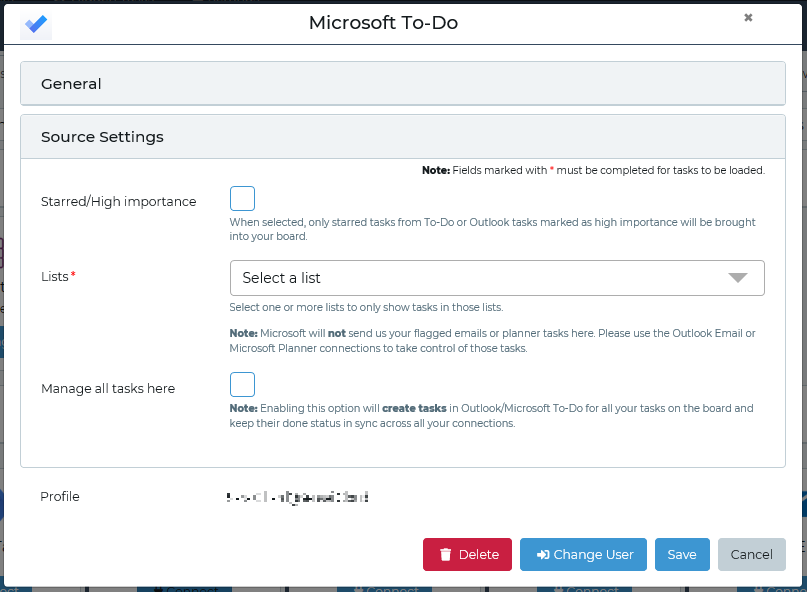
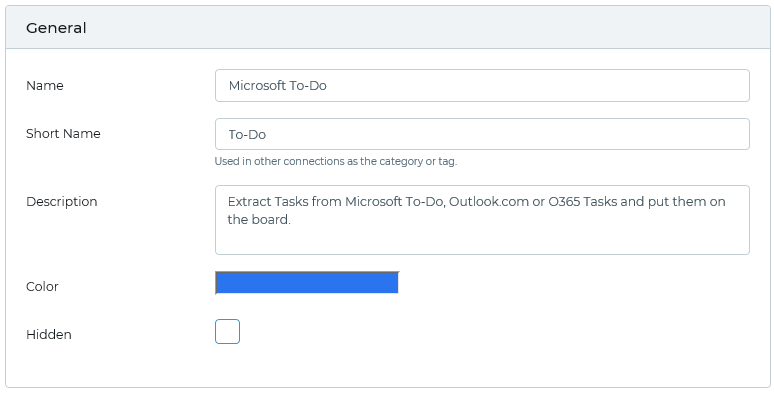
- Click the “General” header to open the general settings for this connection to change the name of this connection or change the display colour for tasks from this connection.
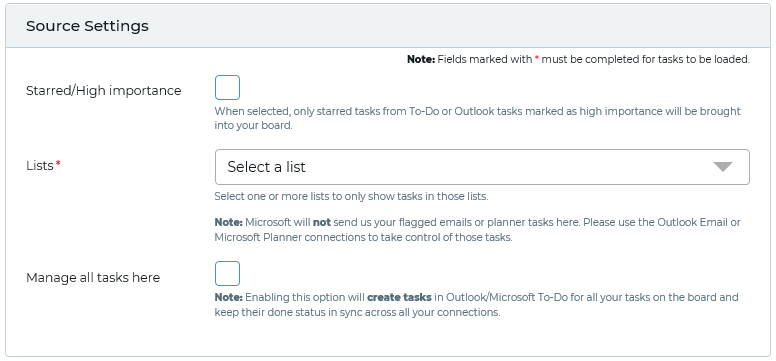
- Click the “Source Settings” header to see the more advanced connection settings.
| Field | Description |
|---|---|
| Starred/High importance | This field allows you to select whether only tasks marked with Stars or as High Importance will connect to OneTaskList. |
| List | This field allows you to select what lists you would like to connect to. You can connect to multiple lists in this one connection. |
| Manage all tasks here | This field allows you to select whether you would like to manage all the tasks connected with OneTaskList in Microsoft To-Do. This will create copies of all the OneTaskList tasks in Microsoft To-Do and any changes made within Microsoft To-Do will be sent back to OneTaskList. |
| List/folder for task creation | This field only appears if you select to “Manage all tasks here”. This list allows you to select what list or folder you would like to push all the OneTaskList tasks to for you to manage them. |
- Set your Source Settings for this connection.
- Click “Save”.
Your connection will now synchronise with OneTaskList and any items that meet your criteria will be visible in OneTaskList and if you have selected to Manage all tasks within Microsoft To-Do all the tasks within OneTaskList will be pushed to Microsoft To-Do.